
As you log on to multiple web sites by entering an ID and passwords, Windows operating system works to save your passwords at a safe location. Good news for the internet users is that they can have a simple and easy access to these passwords, despite the fact that they are usually marked by asterisks and come in hidden form.
While it is difficult to recover and view all the passwords, here are some effective ways to find the stored passwords using the web browsers Firefox and Google Chrome.
How To Find Passwords Saved By Firefox
#1. Firefox Menu
In order to find passwords saved by Firefox, the first and the foremost thing that you are required to do is to launch the browser and open the Firefox menu. Here click the button which says ‘Options’.
#2. Security Tab
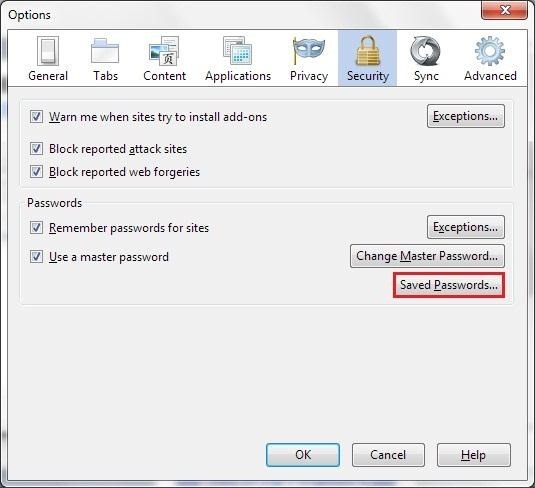
After you have opened the options menu, you will be required to click on the Security Tab which is located on the left side of the page.

(Image Courtesy: How To Geek)
#3. Remember Password For Sites
Now that you have reached the security page, you will be presented with a check list. Find the option which says ‘remember password for sites’ and select the checkbox if it hasn’t been selected already.
#4. Login
Now open up any website which requires a login. Enter your ID and password for that website and wait for a dialog box to appear. Select the option of ‘never for this site’ in order to keep the browser from saving your password. You can also choose the ‘remember me’ option and save the password in Firefox password manager.

(Image Courtesy: Mozilla Support)
#5. Exception
Now go back to the Firefox security page and click on the options of ‘exceptions’ to view the list of websites which are not permitted by the browser to save your password. Alternatively, you can also remove the websites from this list.
#5. View Passwords
As you have sorted your list of websites now, feel free to go to the password manager application and view all your saved passwords by clicking on the save passwords buttons. You can also remove the passwords from here.
How To Find Out Chrome Saved Password
#1. Chrome Menu
The first step that you are required to follow in order to find out Chrome saved password is to launch the browser and open up the menu.
(Image Courtesy: Null Byte)
#2. Chrome Settings
After opening up the menu, click on ‘Settings’. Now scroll down to find and click on another option of ‘show advanced settings’.
#3. Manage Password
On the advanced settings page, you will find a head saying ‘passwords and forms’. Under this head, you will find the option of ‘manage password’
#4. Show Password
By clicking ‘manage password’, you will be able to view all the passwords that you have saved. However, they will appear in a hidden form. In order to find the stored passwords, click on the option which says ‘show’. You will find this option on the top right corner of the list.

(Image Courtesy: The Manage Club)
#5. Login
Once you have clicked on the ‘show’ button, you will be directed to the page which would require you to enter your Windows Password. As you enter the password, you will get an uninterrupted and clear access to all the stored passwords.
#6. Manage Passwords
On this page, you can also manage your passwords efficiently. While you can delete any saved password from here, you can also unblock the sites which you had earlier prohibited from saving your password in the browser.
We would love to hear from you. Share with us more ways to find stored passwords. Kindly use the comment box to share your thoughts and opinions with us.
(Featured Image Courtesy: M3 Network)

3 Opinions

 Share
Share


