

Technology comes with an expiry date. Meaning, what you purchase today, is old tomorrow and will be rendered outdated in the next few years.
If you happen to be on the wrong side of technology and are still using a computer which has clearly seen better days, it is most likely that you encounter occasional or even prominent stutters in performance, called lags.
Every computer user will tell you that lags are annoying. They may occur when you’re playing some demanding games, or even if you have multiple tabs open in your browser while surfing the web. So, the major question that they always ask is: how to get rid of computer lags? We decided to find an answer, and this article is an attempt to present some ways to say goodbye to computer lags. Take a look:
#1. Update Hardware
Times change fast, and technology changes faster. If you’ve been using a computer for the last five or six years, then we can almost confirm that you have to bear a lot of OS lags, due to the outdated hardware in your computer. For instance, if you’re still running Intel’s Pentium chips, then using your computer doesn’t provide you with the best experiences. So, the most basic thing that you should do is to update the hardware of your computer. Get your PC equipped with the latest processors and cooling systems out there and restore it to the glory of the old days.

(Image Courtesy: Wiki How)
#2. Refresh Your Computer
This one is exclusively for our readers who own a Windows PC. Something as basic as a refresh can do wonders to the overall performance of your PC. If you have decent hardware and still have to encounter occasional lags, then you should constantly refresh your device. For that, you can press right-click anywhere on your desktop and select refresh from the menu. Refreshing your system closes certain unwanted apps running in the background and can help in making your PC stutter-free. So, keep refreshing!

(Image Courtesy: Page Start)
#3. Task Manager Support
If a refresh doesn’t seem to solve your problems, then it’s finally time to summon its older brother, the task manager. You can open the task manager by pressing ‘Cltrl+Alt+Delete’ simultaneously. There you’ll find three different tabs, namely Applications, Processes, and Services. You can first clear out all the applications from the applications tabs by pressing 'end all tasks.' If that doesn’t resolve the lag issue, go to processes, and see what processes are running in the background. However, be a little cautious here that there are certain processes that you should never close as they are vital to the performance of your PC. After you’ve figured out the processes that are not vital for your PC’s performance, close them one by one. Right click on them and select end process. Perform the similar drill while closing services under the Services tab.
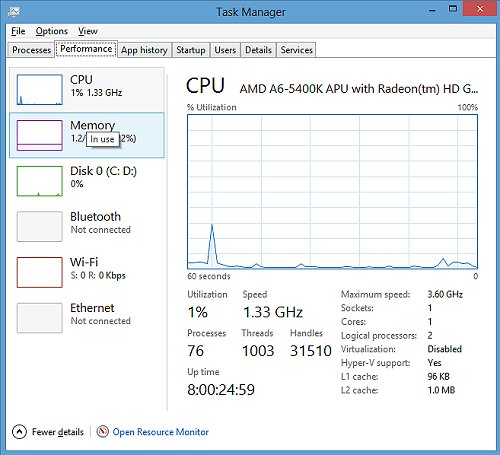
(Image Courtesy: HP Supports)
#4. Game Lags
Sometimes, it doesn’t matter if you have a high-end PC, with the most up to date hardware and software. There are certain games, which will always demand a lot, even in the best PCs. Games such as Crisis, GTA V, and Witcher among others are high graphic demanding games. Your PC has to render an array of different visuals and there are high chances that you encounter some noticeable lags and frame drops in the game play. To fix this issue, go to the in-game settings and search for resolution. Tone down the resolution to 720p. From there, go to graphic settings and bring down the graphic levels from high to low, depending on the specs of your PC. This way, you can experience a smooth and seamless gaming experience, with minor or negligible lags.

(Image Courtesy: YouTube)
#5. Update Anti-Virus
The internet is a vast land, and there are both good people and bad people out there. Among the bad people, there is a breed that wishes to infect people’s computers with viruses. Viruses, as we know can take a toll on any PC, thus, bringing down the performance of the system. In order to avoid any kind of virus attack, install a good anti-virus, like Norton or Kaspersky, and keep it up-to-date at all times. Anti-virus software cost some money, but you have to look at the larger benefits that they bring to the table. Viruses cause a lot of lags in PCs, so keep them at bay, using a trusted and effective anti-virus software.

(Image Courtesy: Kaspersky Support)
So, there you have it. Let us know if you were able to fix the lags on your computer, in the comments below. We would love to hear from you.
(Featured Image Courtesy: Mini Tool)

3 Opinions

 Share
Share


An exhaustive list of things on what one should do to fix the lag issue. I'm sure the best way to go about it would be to update the hardware of a PC. Surely, minor tweaks within the OS, do have results, but nothing impacts the system as much as hardware does. So, if you wish to have a lag free system, upgrade your hardware.