

Coming across error 403 or permission on your screen can be quite infuriating, especially when you are trying to have an access to some important information. The error may pop up in different ways and makes it quite challenging for you to find your way around it.
To help you find an effective solution to it, here is what the error exactly implies and some smart ways to fix a 403 error.
What Does 403 Forbidden Mean?
The 403 error simply implies that the permission to have access to a particular website or page has been denied or forbidden. The error may arise due to different reasons like a need for permissions, faulty configuration, or a prohibited access to a particular area. These may pop-up in different forms like 403 forbidden, HTTP 403, error 403, or forbidden.
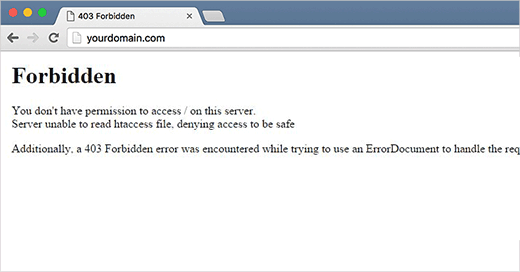
(Image Courtesy: WP Beginner)
How To Fix 403 Error?
#1. File Name And Extension
An error in the URL is the most common cause of a 403 error. Since most websites do not permit browsing through the directory, it is only wise to check if the name and extension that you have provided in the address bar are web pages and not the directory. Alternatively, you can also enable directory browsing in your server software if you tend to use the websites which have prohibited browsing through the directory.
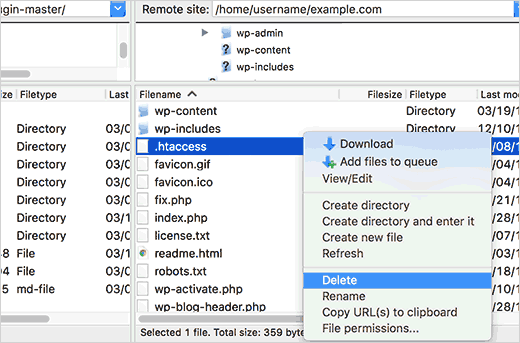
(Image Courtesy: WP Beginner)
#2. Index Page
Another reason for HTTP 403 error could be an error in the index page. If you are having troubles with the 403 error, it is important to check that the home page of your website is called index.php or index.html. You can either upload the homepage to your HTTP docs directory or simply rename the homepage in order to get rid of this error.
#3. Permission And Ownership
The 403 error is also likely to arise when the permissions or ownership are incorrect or faulty. You can simply look up for different ways to fix the permissions and ownership of your web content in order to have an uninterrupted access to the forbidden pages.

(Image Courtesy: Elegant Times)
#4. Clear Cookies And Cache
At times, a problem with a cached form of the page can cause the 403 error. To resolve this, and have the access to the web page, try clearing the cache and cookies from your web browser. Also, while you are logging into a website and come across the error, check if you have enabled cookies for the particular website. This is an important thing to check especially for websites which require logging in.
#5. Log In
At times you are simply required to log in to a particular website in order to get rid of the 403 error, and have an uninterrupted access. Albeit a 401 error is displayed when additional access is required, it may sometimes get replaced with a 403 error.
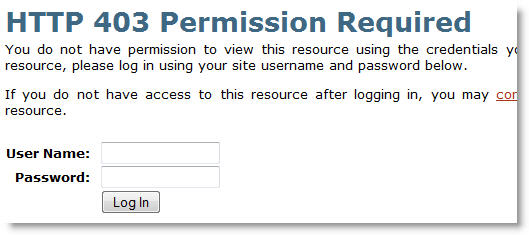
(Image Courtesy: Baticfu)
#6. Contact Website
When no other method works, the only option that you are left with is to contact the website itself asking them to look into the matter.
How do you deal with a 403 error? We would love to hear from you. Kindly use the comment box to share your thoughts and opinions with us.
(Featured Image Courtesy: WP Beginners)

3 Opinions

 Share
Share


403 Forbidden is a HTTP Code. This code tells us that the resource page cannot open due to some reasons. This can happen at any point of time.
The 403 Forbidden Error can be fixed in the following ways:-
-Check for the URL errors.
- In case you want to avoid this error you can enable the web address.
-Clear your browser cache and cookies.
-You must retry the URL, maybe you need some additional information for the web page search.
-If nothing works you can contact your internet service provider.