

Why does your computer not remember passwords? Is it due to some in-built settings or a virus attack? Calm down! There are various ways to view saved passwords in password security/ password manager settings. And it's all related to your browser settings.
All the internet browsers, be it Google Chrome, Firefox or Safari, support options to Auto Fill your information of never save passwords. You need to be really cautious regarding what decision you take. If you opt for saving passwords, here's how you can easily enable your browser to store passwords and go about in a hassle-free way.
#1. There are certain websites that do not allow saving passwords. The simplest solution here might be your saved passwords setting. Just check if your "Auto Complete" or "Auto Fill" is enabled or not.
For instance, PayPal would not allow the login section to use the Auto Complete function to prevent harmful threats against your password strength and login id. But while you manually enter the information and press enter, a popup notification would appear before you finally proceed. This is where you can save passwords and carry forward.
#2. Cache settings is another reason why your browser doesn't store passwords. When you lose the sensitive information despite Auto Compete being enabled, check your cache and cookie permissions. If you manually and regularly clean them or have allowed the browser for automatic removal, or you make use of programs that delete cookies, then it completely explains your loss. This way you are erasing the information that your browser needs to retain.

(Image Courtesy: The Windows Club)
#3. Apart from Auto Fill settings, each browser has its own password management system. The password manager allows a user to enable settings wherein they are offered to save the web passwords. Ideally, this isn't recommended unless your system is secure and isn't a public PC.
But to enable the option, take a look at your browser settings and check the Saved Passwords and Never Save Password settings. Easily view saved password in password security settings and customize according to your preferences.
This is how you can enable the save password settings on various available browsers.
#1. Save Passwords For Google Chrome
Under the Settings tab, click on the Advanced Settings option and hover over the Passwords and Forms section. Both your Password Manager and Auto Fill options appear under the same head. Customize as per your choices.
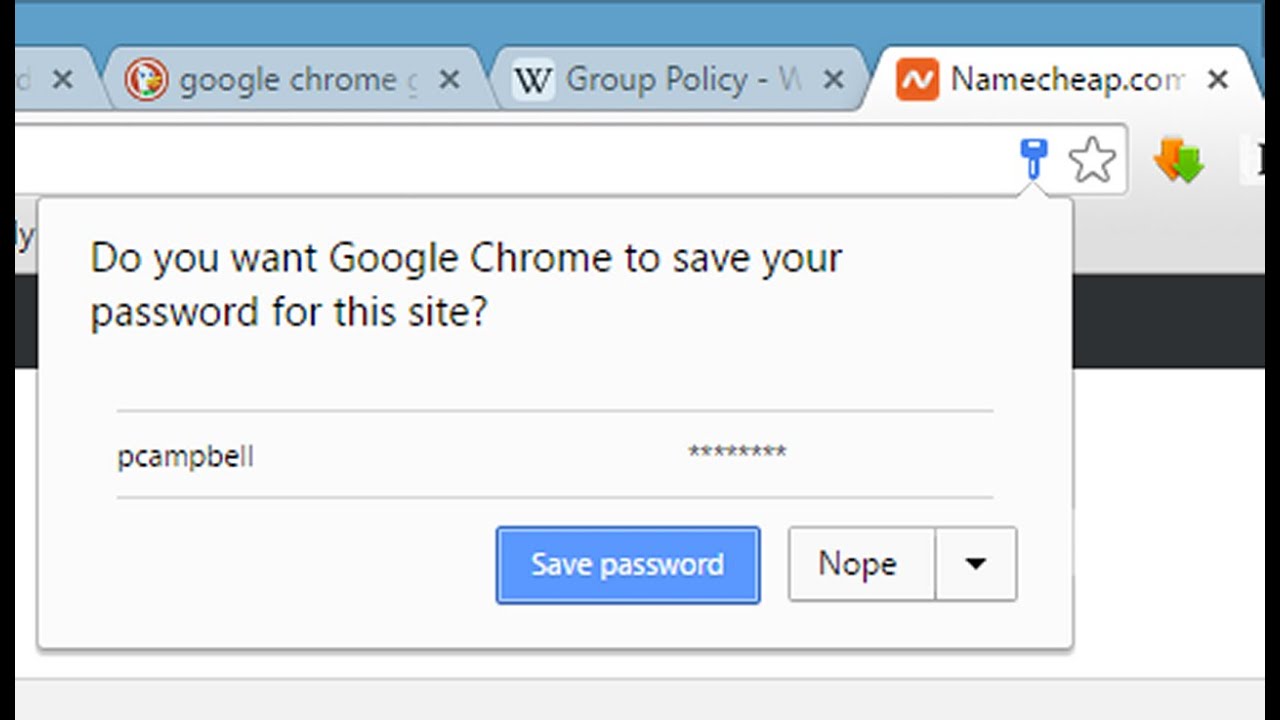
(Image Courtesy: YouTube)
#2. Save Passwords For Safari Browser
Select the Preferences in your Safari browser menu. Click on the Auto Fill option and just select the User Names and Passwords option. So this way, whenever you log into a website next time, Safari browser stores the password information.
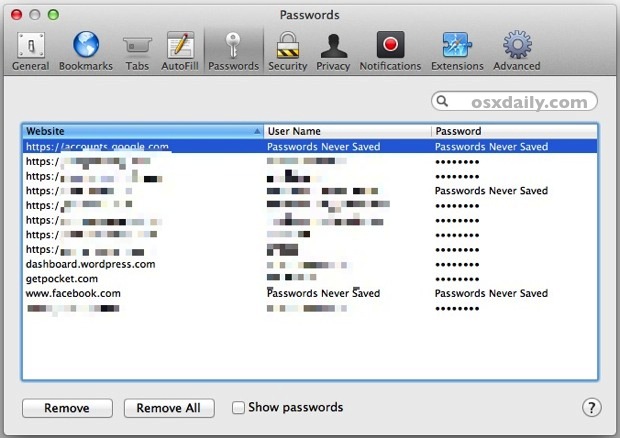
(Image Courtesy: OS X Daily)
#3. Saved Passwords For Firefox
Go to the Firefox menu and get into its Security settings. Select the Remember Passwords for Sites option and log in to the sites you want to save passwords for. It will prompt a notification asking to you tick the save passwords check box. Click on it and you are done.

(Image Courtesy: How To Geek)
Warning: Be very careful regarding the Saved Password settings being enabled on your system. Make sure that the information isn't compromised due to public network settings or the system being an official one.
Liked what you just read? Found it informational? Let us know through the comment section below. We would love to hear from you!
(Featured Image Courtesy: How To Geek)

3 Opinions

 Share
Share


However convenient it may sound, it is quite unsafe to save your passwords on your browsers. This might only harm the security of your accounts, especially when your system is likely to be used by others.