
Did you make a silly or complicated Gmail ID which you now realize you cannot share with anyone? And, now you are looking for a way you can avoid the embarrassment and keep your data at the same time.
To serve you the truth straight up, you cannot change your Gmail address. While the name that is displayed with the Gmail ID can be changed to anything that you fancy, the address cannot. However, this does not mean that there is nothing you can do. Here are a few options that though do not allow you to change your Gmail ID completely, can help you in some cases.
#1. Send Email From Another Account
One thing you can do is send and receive emails from another account. What it means that when you are sending an email to a friend from, say ‘1@gmail.com’, your friend will see that he has received mail from ‘2@gmail.com’. However, it is important to note here that while you may be able to send email from another account, you will not receive any emails of ‘2@gmail.com’ on ‘1@gmail.com’.
Here is How you can send email from another account.
#1. The first thing that you need to do here is to create a new Gmail account which will be the equivalent of ‘2@gmail.com’.
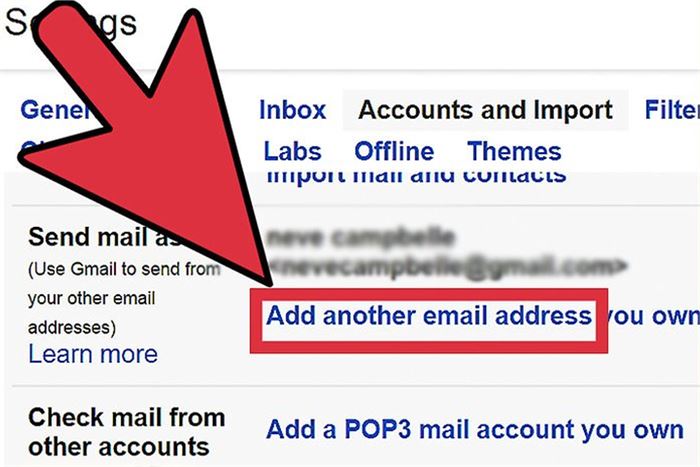
#2. Then sign in to your original account, like ‘1@gmail.com’ that we have here.
#3. Now, click on the settings gear icon in the top right corner of the screen and after selecting ‘Settings,' tap on the ‘Accounts and Import’ option.
#4. In the ‘Send mail as’ section, you will see an option, ‘Add another email address.'
#5. Then, insert the name that you want to show along with the new Gmail address you created.
#6. Before you are ready to go, you will have to log in back to your new Gmail account and verify by clicking the link.
#7. Furthermore, you can also choose to reply from the same address which received the message.

(Image Courtesy: Adobe Support)
#2. Set Automatic Forwarding To Your New Gmail Address
Another option that comes close to changing your Gmail address but still keeping the account is automatically forwarding all the emails you get to a new address. How you set this up is:
#1. Create a new Gmail account which you want to receive all your correspondence.
#2. Log in to your old Gmail account.
(Image Courtesy: TechMaish)
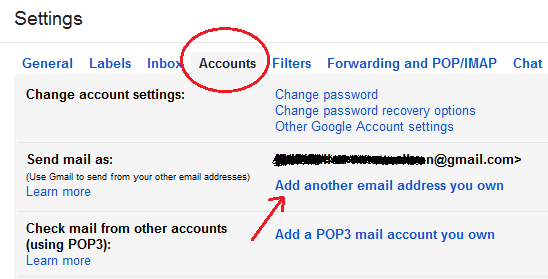
#3. Click on the setting gear at the top right corner of your screen and select the ‘Settings’ option.
#4. In the ‘Forwarding and POP/IMAP’ tab, you will find the ‘Add a forwarding address’ option; click on it.

(Image Courtesy: Setup Email Address)
#5. After submitting the new Gmail address that you created in step one, and log in back to the new Gmail and verify.
#6. At any point in future, you can also opt to turn off automatic forwarding. All you have to do is go back in the ‘Forwarding and POP/IMAP’ in settings and select disable forwarding.
We hope this helped. Share your opinions about the article through your comments below. We would love to hear from you.
(Featured Image Courtesy: YouTube)

3 Opinions

 Share
Share


Gmail is undoubtedly the best, and the most reliable email for both personal and professional use. It comes equipped with a ton of features that most of its users don't even know its full potential. Undoubtedly, the greatest email provider ever. Period. Having said that, I don't think it is possible to change your email id on Gmail.