

Dell is a popular brand when it comes to buying laptops and PCs. Most of the Dell laptops and PCs come with Windows 7 or Windows 10. Have you ever wondered what will you do if you lost access to your computer because you forgot your password? Your Dell laptop has all your crucial data and information that you cannot afford to lose. Since you have lost your password, all your data might be lost. But don’t worry, there are ways by which you can recover your password and gain access to your data.
There are two ways through which you can reset your dell laptop password. The first one is to reset Dell laptop password with Windows Installation Disk and the second one is to reset with UUKeys Windows Password Recovery.
Let’s see how each of these can be helpful in regaining access to your computer or laptop.
#1. Reset Dell Laptop Password with Windows Installation Disk
The first thing that comes to mind when you can’t recover your password is to reinstall the Windows System. After installation, all previous passwords will be removed and you can access your computer. However, all your files in the C:\ will be removed and these are the files that are the most important ones; the user files. Plus, you will also have to reinstall all the drivers and programs from the scratch. This takes a lot of time. Plus, you need to reinstall drivers and programs from the scratch, which will take a lot of time. This is an alternative solution to resetting your password, but it also results in data loss. You can use this method if you are worried about your lost data. The steps to resetting your password using this method are:
Step 1: Take out the Windows disk and insert it into your Dell Laptop or PC.
Step 2: Change first boot option to CD/DVD on your Computer via BIOS settings.
Step 3: Reboot the system and follow the instructions on the screen so that you can reinstall the system.
Step 4: Restart your computer after the installation. Enter into the system without any passwords so that you install the drivers.
(Image Courtesy: Asunsoft)
#2. Reset Dell Laptop Password with UUKeys Windows Password Recovery
If you don’t’ have a Windows Installation Disk or you're worried to lose your data, then using this method is the best option. Traditional password recovery tools do not work any longer on Windows 7 or Windows 10. The use of third party software comes to your rescue. UUKeys Windows Password Recovery is a software that eases the entire process. This software allows you to recover user and administrator password on Windows 10, 8, 7 and XP. It also supports all the Dell PCs and laptops with Windows installed. The program is user-friendly and easy to use. For this, you would need a normal Windows computer that you can log in as an administrator, a blank CD/DVD or a USB drive with 250+ MB free storage and installation file of UUKeys Windows Password Recovery. These steps will help you recover your password easily:
Step 1: Install and Run UUKeys Windows Password Recovery: Download the UUKeys Windows Password Recovery software on your computer.
Step 2: Select USB as the Media in order to Create Windows Reset Disk: You will get a choice to either select USB or CD/DVD. Select the USB option as it is more convenient.
Step 3: Set First Boot Option to USB on Locked Dell Laptop: Insert the password recovery disk into the locked computer. Then switch on the power and start booting the computer from the USB flash drive. Now, press the F2 key during startup. This gives you access to BIOS settings. Change the sequence and reboot the computer.
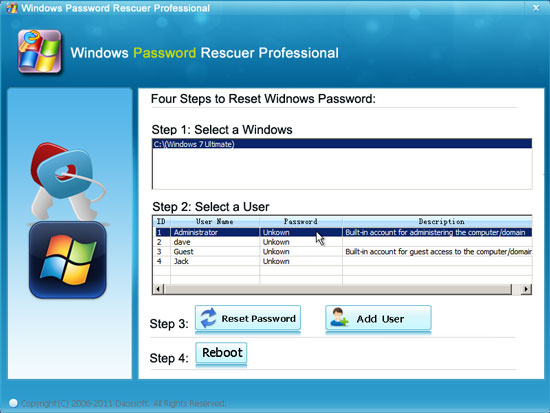
Step 4: Select Admin Account and Reset Password to Blank: After successful booting, you will get an option to reset the password. Once you select this, your password will be set to blank.
Finally, eject the flash drive and change the boot order to hard drive. Reboot your system once again, and you will access to all your data.

(Image Courtesy: Windows Password Key)
So there you have it. Now you can access your data even if you forget your password on a Dell laptop or a computer. Liked what you read? Tell us in the comment section about it.
(Featured Image Courtesy: Wonderful Engineering)

12 Opinions


