Many people do not even realize that they can grant a limited access to anyone to their Gmail account by following a few simple steps and end up handing over their crucial information and power to them by sharing the password to their Gmail account with them. A simple Google search could help them. If you are looking to do the same, then click on the gear sign on the top right corner of the gmail account, obviously once you are logged in to your account. Then you have to click on the settings option. Now, the page will reload and you will be presented with a wide range of tabs and options. Here you have to select the ‘Accounts and Import’ option wherein you will be able to locate the grant access to your gmail account option. This is a special feature that Google has added to gmail so that users do not have to share their gmail password with anybody to give them a limited access to sending and reading mails. Here, you have to click on the Add another account option and by confirming the same, you are done. It is really as simple as that.
Thank you for posting your query on our website. It is not easy to grant Gmail access without sharing our password, but we are glad to bring you the steps which will enable you to do so. Giving someone your password means that you trust them a lot, but we must be careful in sharing such crucial information. Not because we do not trust the person we are sharing the password with but to ensure that we do not end up getting betrayed by anyone. Another reason for not sharing your password with someone can be that you use the same password for all your social media accounts. Thus, what to do in such cases? Do not worry as we have the information that will surely make you happy.
Google has a delegate feature using which you can grant anyone you want access to your account without giving them your password. The limit is 10 for a regular account, and 25 for a school or work account. The people you give access to can read, delete and send messages. If a delegate sends e-mail, it is their e-mail address which will appear in the message along with yours. They can manage your contact which means that they can make necessary changes to a contact’s information. However, they cannot change any of your Gmail settings including your password and won’t have permission to chat with anyone on your behalf.
This service is mostly used by users who compose a mail with can be used by their colleagues or school friends. Below are the steps for both addition and removal of this awesome delegate feature.
How to Add Delegate Feature?
#1. Go to Settings > Accounts and Import.
#2. Under Grant access to your account, click on 'Add' to add another account.
#3. Choose whether messages read by delegates are marked as read or not.
#4. When prompted, enter the email address of the person you want to grant access to your account, and then confirm that you want to share access.
#5. The delegate will receive an email with a link that they must click within seven days of receiving the email, or else the offer will expire. You'll know when someone has accepted your request by going back to the 'Accounts and Import' section, and you'll see whether or not they've accepted, next to the email address.
It will take approximately 30 minutes for the changes to be applied.
How To Remove Delegate Feature?
#1. Go to Settings > Accounts and Import.
#2. Under Grant access to your account, click 'Delete' next to the email account you want to delete.
We hope you will find the answer to what you have been looking for. We will be looking forward to more such interesting questions from your end.
Thanking You
Team AskOpinion
(Image Courtesy: 1. Life Wire, 2. Youtube, 3. The Mouse Whisperer)
Sharing your gmail password is not always an option but you can delegate your account to people. This option allows you to share you gmail with up to 10 people and in case you are using your gmail account for school, work or any other organization, you can delegate your account to up to 25 people. Also, there is no limit to how many accounts can be delegated to one gmail account. This option can easily be found under the Accounts and Import or Accounts tab in Settings. When you delegate your account to somebody, then that person can send or reply to emails you receive, read messages, delete messages along with managing your contacts. What delegates do not get access to is chatting with anyone on your behalf or changing your gmail password. After you have added a delegate to your account, you can simply remove it when you want to by following a few steps. In the same Accounts and Imports tab in Settings, under the Grant Access to your account, you will find the Delete option next to your delegates. Just click on it and you are done. Hope this helps.
Sharing your Gmail password with someone is a matter of high security and especially if that person is not someone you trust so much. At times we use the same password for most of our accounts and sharing the password of one might mean giving access to all of our accounts to the other person. We definitely do not want to take such a huge risk. I wanted to give access to my secretary so that she could filter the emails I got but I was hesitating in sharing the password altogether. This seemed impossible until the other day when I came to know that you can do it without sharing the password as well. I mean why would share the password when you can get the work done without it as well. Sharing the password also meant that she would have access to everything that is attached to my Gmail account. So for you people, I will share this simple method of giving access to your Gmail account without sharing the password.
Using the delegates feature, you can allow someone passage to your account without disclosing your password. You can add up to 10 delegates with a regular account and up to 25 with a school or work account. Delegates can read, send, and delete emails in your Gmail record. When an email is posted by a delegate, their email address will arrive in the message as well. They can also handle your Gmail contacts. But they cannot switch any of your Gmail settings, which is your password. They also cannot chat with anyone in your place.
Here are the steps you need to follow: Step 1 - Go to your inbox and click on the gear icon which is on top right corner of the screen to open "settings". Step 2 - You have to click on the option of "Accounts and Import". Step 3 - Under the option of 'Grant access to your account' click on "Add another account". Step 4 - It will give you the option of filling in the email ID you want to give access to. Make sure that it is a Gmail account that you are adding. Step 5 - An email will be sent to the delegated email to confirm the request. Once they confirm it, it will take about half an hour before Google can process the request.
This is what I did to make my secretary use my Gmail account for work.

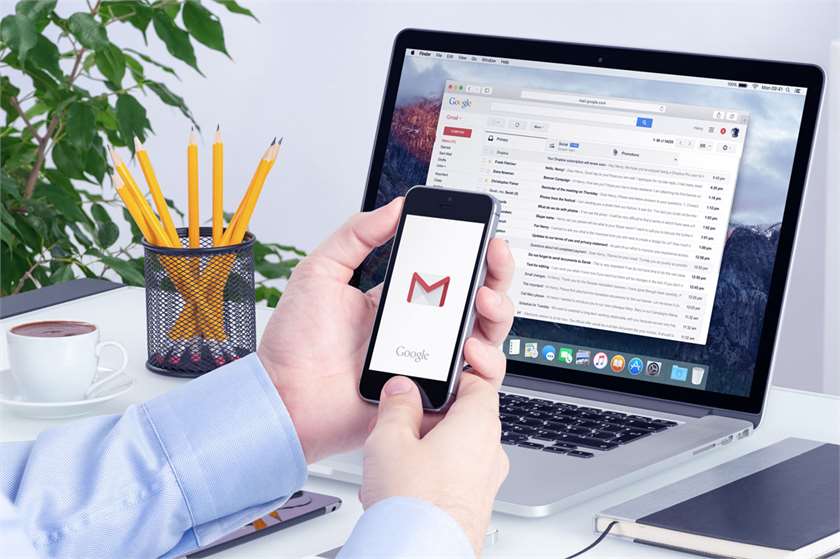


Many people do not even realize that they can grant a limited access to anyone to their Gmail account by following a few simple steps and end up handing over their crucial information and power to them by sharing the password to their Gmail account with them. A simple Google search could help them. If you are looking to do the same, then click on the gear sign on the top right corner of the gmail account, obviously once you are logged in to your account. Then you have to click on the settings option. Now, the page will reload and you will be presented with a wide range of tabs and options. Here you have to select the ‘Accounts and Import’ option wherein you will be able to locate the grant access to your gmail account option. This is a special feature that Google has added to gmail so that users do not have to share their gmail password with anybody to give them a limited access to sending and reading mails. Here, you have to click on the Add another account option and by confirming the same, you are done. It is really as simple as that.
Dear User,
Thank you for posting your query on our website. It is not easy to grant Gmail access without sharing our password, but we are glad to bring you the steps which will enable you to do so. Giving someone your password means that you trust them a lot, but we must be careful in sharing such crucial information. Not because we do not trust the person we are sharing the password with but to ensure that we do not end up getting betrayed by anyone. Another reason for not sharing your password with someone can be that you use the same password for all your social media accounts. Thus, what to do in such cases? Do not worry as we have the information that will surely make you happy.
Google has a delegate feature using which you can grant anyone you want access to your account without giving them your password. The limit is 10 for a regular account, and 25 for a school or work account. The people you give access to can read, delete and send messages. If a delegate sends e-mail, it is their e-mail address which will appear in the message along with yours. They can manage your contact which means that they can make necessary changes to a contact’s information. However, they cannot change any of your Gmail settings including your password and won’t have permission to chat with anyone on your behalf.
This service is mostly used by users who compose a mail with can be used by their colleagues or school friends. Below are the steps for both addition and removal of this awesome delegate feature.
How to Add Delegate Feature?
#1. Go to Settings > Accounts and Import.
#2. Under Grant access to your account, click on 'Add' to add another account.
#3. Choose whether messages read by delegates are marked as read or not.
#4. When prompted, enter the email address of the person you want to grant access to your account, and then confirm that you want to share access.
#5. The delegate will receive an email with a link that they must click within seven days of receiving the email, or else the offer will expire. You'll know when someone has accepted your request by going back to the 'Accounts and Import' section, and you'll see whether or not they've accepted, next to the email address.
It will take approximately 30 minutes for the changes to be applied.
How To Remove Delegate Feature?
#1. Go to Settings > Accounts and Import.
#2. Under Grant access to your account, click 'Delete' next to the email account you want to delete.
We hope you will find the answer to what you have been looking for. We will be looking forward to more such interesting questions from your end.
Thanking You
Team AskOpinion
(Image Courtesy: 1. Life Wire, 2. Youtube, 3. The Mouse Whisperer)
Sharing your gmail password is not always an option but you can delegate your account to people. This option allows you to share you gmail with up to 10 people and in case you are using your gmail account for school, work or any other organization, you can delegate your account to up to 25 people. Also, there is no limit to how many accounts can be delegated to one gmail account. This option can easily be found under the Accounts and Import or Accounts tab in Settings.
When you delegate your account to somebody, then that person can send or reply to emails you receive, read messages, delete messages along with managing your contacts. What delegates do not get access to is chatting with anyone on your behalf or changing your gmail password. After you have added a delegate to your account, you can simply remove it when you want to by following a few steps. In the same Accounts and Imports tab in Settings, under the Grant Access to your account, you will find the Delete option next to your delegates. Just click on it and you are done. Hope this helps.
Sharing your Gmail password with someone is a matter of high security and especially if that person is not someone you trust so much. At times we use the same password for most of our accounts and sharing the password of one might mean giving access to all of our accounts to the other person. We definitely do not want to take such a huge risk. I wanted to give access to my secretary so that she could filter the emails I got but I was hesitating in sharing the password altogether. This seemed impossible until the other day when I came to know that you can do it without sharing the password as well. I mean why would share the password when you can get the work done without it as well. Sharing the password also meant that she would have access to everything that is attached to my Gmail account. So for you people, I will share this simple method of giving access to your Gmail account without sharing the password.
Using the delegates feature, you can allow someone passage to your account without disclosing your password. You can add up to 10 delegates with a regular account and up to 25 with a school or work account. Delegates can read, send, and delete emails in your Gmail record. When an email is posted by a delegate, their email address will arrive in the message as well. They can also handle your Gmail contacts. But they cannot switch any of your Gmail settings, which is your password. They also cannot chat with anyone in your place.
Here are the steps you need to follow:
Step 1 - Go to your inbox and click on the gear icon which is on top right corner of the screen to open "settings".
Step 2 - You have to click on the option of "Accounts and Import".
Step 3 - Under the option of 'Grant access to your account' click on "Add another account".
Step 4 - It will give you the option of filling in the email ID you want to give access to. Make sure that it is a Gmail account that you are adding.
Step 5 - An email will be sent to the delegated email to confirm the request. Once they confirm it, it will take about half an hour before Google can process the request.
This is what I did to make my secretary use my Gmail account for work.