

If you want to know how to install audio drivers, or to be specific, how to install Realtek audio HD manager, then you are at the right place.
This article will give you the insights and required knowledge on how to install Realtek audio HD manager, how to use Realtek audio HD manager and how to remove Realtek audio HD manager from your system according to your preferences.
Realtek High Definition (HD) Audio Driver is amongst the most commonly used sound drivers for computers that provide a user with high-quality Dolby Surround Sound. And it is only after downloading the program on your system that you get the bundle of Realtek audio HD manager. The application allows you to fully control your system's sound i.e,. tune it properly and play with ease. It endures some of the best equalizer settings for the Realtek audio HD manager.
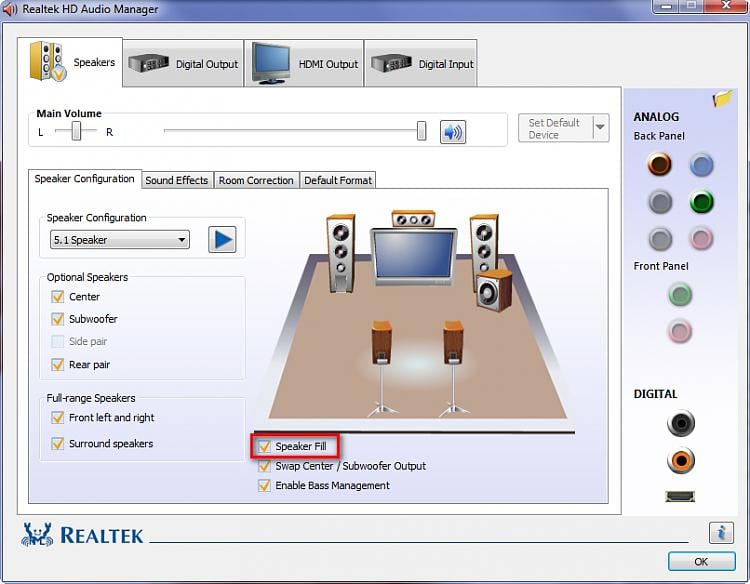
How to use Realtek audio HD manager? Once you have the software on your system, the manager works without any hassles. It efficiently boosts your system sound and provides an altogether different kind of an audio experience.
(Image Courtesy: Windows & Forum)
The entire Realtek audio HD manager package comes installed on your PC when you install the Realtek HD audio drivers. The manager is easy to launch, and it is from your system tray that you double-click the Mixer icon and further access the settings.
Upon exploring you'll find two icons - Speakers and Microphone. The speaker tab controls the sound effects and speaker configuration framework. Whereas, microphones are responsible for the mic sounds. It isn't really difficult to control the manager. Once you know where and how each of the applications falls, it goes about easily.

(Image Courtesy: Driver Easy)
How To Install Audio Driver
This is how you can install Realtek audio HD manager.
#1. The easiest way is to log in to the official website of Realtek (http://www.realtek.com) where you can find the audio drivers for your particular system.
#2. You will find an option on the homepage to install the audio drivers on your computer.
#3. Click on the same and the website navigates you to a separate page.
#4. Here, accept the terms and conditions.
(Image Courtesy: Virtual Audio Streaming)
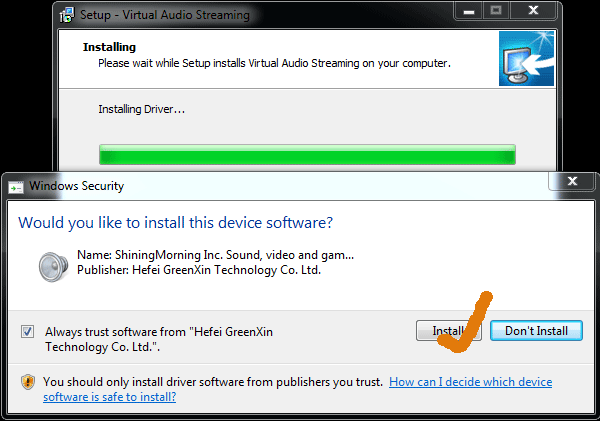
#5. Now download the software that's compatible with your system and is in accordance with the operating system.
#6. After the downloading completes, just Run the program and follow the steps.
#7. All your audio related problems would be resolved once this program starts.
How To Remove Realtek Audio HD Manager?
#1. The packaged bundle can easily be uninstalled from your system by making use of the Device Manager.
#2. Go to Control Panel > Device Manager > Realtek HD.
#3. You will need to right click on the Realtek icon and choose to uninstall this particular program entirely.
#4. Keep following the instructions as they pop up and disable the driver or it's system updates in one simple step.
There, however, aren't any specific settings for the Realtek manager, and it works well in every setting. Depending upon your system's motherboards, speakers and/ or sound cards, the environment, and preferences differ.
Equalization comes in several tones: Jazz, live, pop rock and more. Your taste in music depends on what suits you best. But, this might be helpful for you: While using headphones let there be Stereo settings. If you are using Speakers, then opt for the Rock or Bass settings. And in case, you are using the laptop speakers simply opt for the Full Treble mode.
Liked what you just read? Found it information? Want to read some interesting content? Let us know through the comment section below what would you like to read about. We would love to hear from you!
(Featured Image Courtesy: Overclock)


