

'Find my iPhone' app is a useful feature that is available on iOS and MacOS and helps one in locating or finding their missing iPhone, iPad and Mac devices. When one purchases an apple device and activates ‘Find My iPhone’ on it, it gets linked to their Apple ID. After which, the user can locate the iPhone, iPad or Mac by logging on to iCloud.com or they can use the 'Find My iPhone' app on an iPhone or iPad.
This feature is immensely useful in not just locating a lost device on a map but also to lock it, wipe out all its content or send a message to the lost device. It also helps the person who has accidentally found the device to return it. This feature helps you find your phone easily if it’s stolen or if it’s misplaced. Probably's that what makes Apple be the brand that it is!
How To Turn Off 'Find My iPhone' App
A great perk of owning an iPhone is the added features that the phone has. This particular feature is fascinating, but if you are planning ever to sell your device or sending it away to get it repaired, then it’s important that you turn off or remove 'Find My iPhone.' In the case of selling your iOS device, make sure that you erase all the content and settings. To do this, you have to go to settings and then general, after which you go to reset and erase all content and settings. Once the content is deleted, 'Find My iPhone, ' and 'Activation Lock' is also turned off.
(Image Courtesy: Macworld)
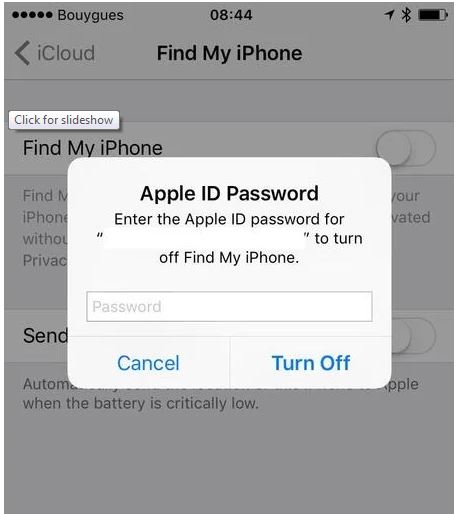
In case you have purchased a second hand iPhone, then you need to get in touch with the previous owner and find out the Apple ID and password requested by 'Find My iPhone.' Once you have the necessary information all you need to do is the following:
• Firstly, open settings
• Tap on iCloud
• Select 'Find My iPhone.'
• Set 'Find My iPhone' to off
• Enter the Apple id password for the account mentioned and tap on the turn-off
(Image Courtesy: Macworld)
How To Turn Off 'Find My iPhone'?
To remove 'Find My iPhone' from your Mac book, you need to follow a slightly different procedure. You need to go to the Apple menu that is on the top bar and select system preferences; you can select the same from the Dock as well. Then click on iCloud which looks different on various types of MacOS/MacOS X. On the bottom of the list you will see 'Find My Mac' with a blue tick next to it, just click on the tick to remove the feature.
Did you find the article useful and what other hacks do you wish to know about? Do leave us feedback in the comment box below.
(Featured Image Courtesy: YouTube)

 Share
Share


