
If you own an Android device or ever did then, you might have heard of APK and wondered “what is APK?” The answer is simple. An APK is just like the .exe file on the Windows PC systems for installing software, Android does the same. An APK file is the file format used for installing software on the Android operating system.
Here we’ll be talking about how to install an APK file, what to do when your APK file is not installing, what steps to undertake when the APK install is blocked, how to install APK to SD card and many more APK related stuff.
Read on further to find out all about Android Package Kit.
Why APK?
Sometimes APK files of new Android builds are leaked way before they hit the market. This gives you an early access to some exciting features that wouldn’t have been available to you. Also, some apps are restricted in specific countries. And, if your Android phone lacks access to Google Play Store, APK files are your only way of getting apps. But you have to be careful. There are many apps out there that contain malicious content, and can be very harmful to your device. Make sure you do not download any illegal files. Do some research so that there is no violation of the law.

(Image Courtesy: Android Guys)
APK Install On Android
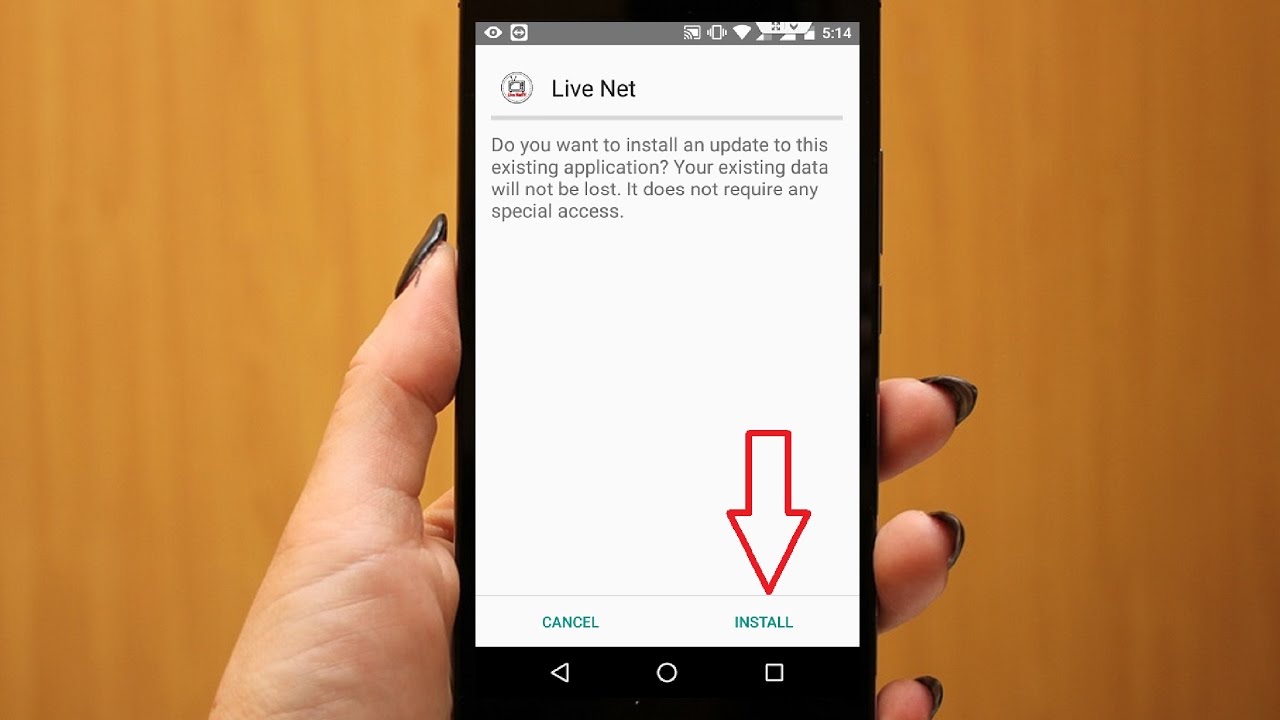
There are many sources from where you can get your APK files. But selecting the trustworthy site is difficult. If the file contains malicious content, your phone’s security is at a greater risk. APK Mirror is a safe option for all your APK file needs. Before you install it on your phone, make sure that third-party apps are allowed on your device. Go to Menu, then Settings followed by Security and then finally check Unknown Sources to allow your phone to install apps from sources other than the Google Play Store. Tap on the download option and the file will start downloading in the bar above. Once the file is installed, you will be prompted to select whether you want to go further with the installation. Tap on “yes” and your file will be installed and ready for use.

(Image Courtesy: Ubergizmo)
APK Install From PC To Android Phone
To install an APK file from your PC to your phone, search for an APK file and download it to your desktop. Make sure you have given permission to “Unknown Sources” on your Android device. Once you've downloaded the APK file on your system, make sure you connect your device to it. Choose Media device if asked to make a choice on your phone. Now, search for your phone's folder on the computer. Go to 'My Computer' or 'Computer' on Windows PC. Then, copy the APK file into any folder on your Android phone. You will now be able to access the file location in the “My Files” folder of your device. Find the APK file, tap it, and then hit Install. And now you're done. Just open it up from your phone, and make sure it works properly. If it doesn't, repeat the process with a different APK file.
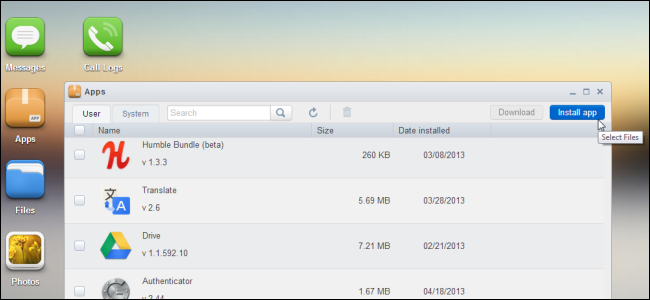
(Image Courtesy: How To Geek)
APK File Is Not Installing
You might get an error where your APK file is not installing, or APK install is blocked. This is very common with APK files downloaded from the web. No matter how much you try, you still get the same “app not installed” error. Some of the possible reasons for this would be:
#1. Insufficient storage space: You might not be able to install your APK file due to lack of space on your device. Clear any unwanted apps, and then install the file again.
#2. Corrupted app or APK file: Chances are that your file might be corrupted. Make sure that you download the file from a reliable source and check the reviews of other customers too.
(Image Courtesy: YouTube)
#3. Incorrect app installs location: Some apps are meant to be installed only in your phone’s memory whole some can be installed in both the SD card and the phone memory. Make sure you are installing the file in the correct location.
#4. Corrupted storage: Sometimes your storage can get corrupted from some pre-existing file or app. Remove the malicious app, and then install the file. You will be able to install it with ease.
So, there you have it. All that you need to know about APK files and how to install them. Let us know in the comments section below about your experiences with APK files.
(Featured Image Courtesy: Wikihow)

 Share
Share


